
For shops · Shopify
Add a bracelet builder to your Shopify
Let your customers design their crystal bracelet on your Shopify store with a single Custom Liquid section. Nothing to install, nothing to maintain.
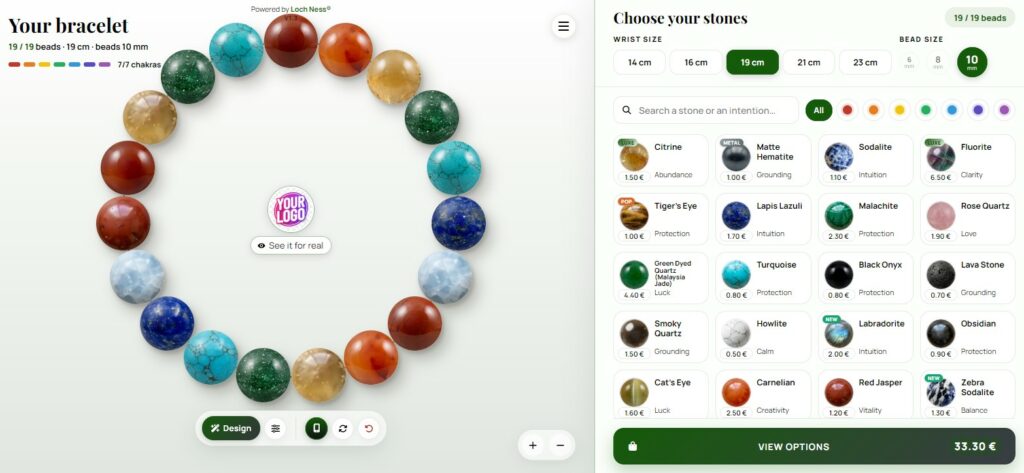
Do you sell gemstone bracelets and want your customers to design their own, right on your Shopify store? You can do it without installing an app and without touching your theme’s code. This guide shows the four ways to add the Loch Ness bracelet builder, from a simple menu link to a floating button on every page, step by step.
Before you start
The builder stays hosted on our servers and appears on your store. You always get the latest version, with nothing to update on your side. You need two things:
- your identifier, sent by Loch Ness when your builder is set up (for example
my-shop); - an Online Store 2.0 theme, which covers all recent Shopify themes, including Dawn.
Your name, logo, colours, menu, prices, currency and choice of stones are tied to your identifier. You change them from your client area, and they update everywhere at once, without touching Shopify again.
YOUR-IDENTIFIER.Which option should you choose?
| Option | Best for | Time |
|---|---|---|
| 1. Menu link or button | The simplest: the builder opens full page | 2 min |
| 2. Dedicated page | A “Design your bracelet” page inside your store | 5 min |
| 3. Floating button | A button on every page of your store | 5 min |
| 4. Compact builder | A column or a product page | 5 min |
You can combine them. Many shops use a dedicated page and add a link to it in the main menu.
Option 1: a link in your menu or a ready-made button
Without any frame, the builder opens full page, at your colours. That gives it the most room, especially on phones.
- Add it to the menu. In your Shopify admin, go to Online Store → Navigation, open your main menu and click Add menu item.
- Name it and paste the address. Name it, for example “Design your bracelet”, then paste this address in the Link field:
https://lochness-paris.com/pwa/en/?client=YOUR-IDENTIFIERTo show a button on your home page or in a product description, use the ready-made button from your client area. It already uses your colours.
Option 2: a dedicated “Design your bracelet” page
- Create the page. In your admin, go to Online Store → Pages → Add page. Give it a title (“Design your bracelet”) and save.
- Create a page template. Go to Online Store → Themes → Customize. In the drop-down at the top of the editor, choose Pages, then Create template. Name it, for example
bracelet-builder. - Add a Custom Liquid section. In this template, click Add section and choose Custom Liquid.
- Paste the code. Paste the code below into the Custom Liquid field and save.
- Assign the template. Go back to Online Store → Pages, open your page and choose
bracelet-builderin the Template field. Save. - Add it to the menu. In Online Store → Navigation, add a menu item pointing to this page.
<iframe src="https://lochness-paris.com/pwa/en/?client=YOUR-IDENTIFIER" style="width:100%;height:860px;border:0" loading="lazy" title="Bracelet builder"></iframe>
<p style="margin:6px 0 0;font:12px/1.4 Arial,sans-serif;text-align:center;color:#6b6b6b">Bracelet builder by <a href="https://lochness-paris.com/" style="color:inherit">Loch Ness®</a></p>On a computer, the builder shows two columns: the bracelet on one side, the stones on the other. On a phone, it switches automatically to its mobile layout.
Option 3: a floating button on every page
A small round button appears in a corner of your store. One click opens the builder in a panel, without leaving the page. The builder only loads on the first click, so your store stays fast.
- Open the theme editor. Go to Online Store → Themes → Customize.
- Add a Custom Liquid section to the footer. In the Footer area of the left panel, click Add section and choose Custom Liquid. A section in the footer appears on every page.
- Paste the code below and save.
- Turn the button on. In your client area, switch the floating button on and choose its text and side (left or right). You can switch it off at any time, without touching Shopify.
<script src="https://lochness-paris.com/pwa/widget.php?client=YOUR-IDENTIFIER&lang=en" async></script>
<p data-ln-credit style="margin:6px 0 0;font:12px/1.4 Arial,sans-serif;text-align:center;color:#6b6b6b">Bracelet builder by <a href="https://lochness-paris.com/" style="color:inherit">Loch Ness®</a></p>If your theme doesn’t allow sections in the footer, paste the same code in Online Store → Themes → … → Edit code, in the layout/theme.liquid file, just before </body>.
Option 4: a compact builder (column or product page)
This version always uses the mobile layout, in a narrow frame. It suits a sidebar, a bracelet product page or a “try it” block on the home page. Add it in a Custom Liquid section or block, as in option 2.
<iframe src="https://lochness-paris.com/pwa/en/?client=YOUR-IDENTIFIER&layout=mobile" style="width:420px;max-width:100%;height:780px;border:0;border-radius:16px" loading="lazy" title="Bracelet builder"></iframe>
<p style="margin:6px 0 0;font:12px/1.4 Arial,sans-serif;text-align:center;color:#6b6b6b">Bracelet builder by <a href="https://lochness-paris.com/" style="color:inherit">Loch Ness®</a></p>Several languages on your store
The builder exists in English, French, Spanish and Hungarian (and many more upon request). To change the language, replace /en/ in the address with /fr/, /es/ or /hu/, and lang=en with the matching code for the floating button. If your store uses Shopify Markets with several languages, add one Custom Liquid section per language version, or ask us: your client area gives the codes for every language.
Check that everything works
- The builder shows your name and colours. If you see the Loch Ness colours instead, the identifier in the code is probably misspelled.
- Test on your phone, not only in the editor preview.
- Make a test design and send it. Check that the order request arrives at the email address set up for your shop.
- For the floating button, wait up to 5 minutes after switching it on in your client area: the change takes that long to appear.
Frequently asked questions
Do I need an app from the Shopify App Store?
No, and that’s by design: no app to install, no monthly app fee and nothing that slows your store down. A menu link or a Custom Liquid section is enough.
Does it work with my theme?
Every Online Store 2.0 theme, including Dawn, offers the Custom Liquid section. The menu link (option 1) works with any theme. If you are unsure, tell us your theme name.
Is it adapted to mobile?
Yes. The builder is designed for touch screens and switches to its mobile layout on phones. For a phone-first store, the menu link (option 1) or the floating button (option 3) gives the most comfortable experience.
Will my colours, prices and stones appear?
Yes. Your name, logo, colours, menu, prices, currency and stone selection are linked to your identifier and applied automatically. You change them from your client area, without touching Shopify.
How do orders reach me?
When a customer finishes a design, the builder sends an order request with the full composition (stones, size, price) to the email address set up for your shop. You then confirm the order with your customer.
Will it slow my store down?
No. The frames load only when visitors scroll to them, and the floating button loads the builder only on the first click.
Is it free?
The builder is currently in its pilot phase: it is free, on condition that the line “Bracelet builder by Loch Ness®” stays under the builder. Pricing will be announced before the pilot ends.
Sources
Shopify — Liquid reference · Shopify — Section groups (header and footer) · MDN Web Docs — The iframe element

Written by Camille G., founder of Loch Ness. I designed symbolic jewelry for my own brand from 2013 to 2023, and I have been building web apps and tools full-time since. I code this bracelet builder myself. My story · GitHub · ORCID
Your bracelet builder on Shopify
Request your builder: free during the pilot phase, set up with your name, colours and stones. We reply within 48 hours.
Request my builder Try the builder